Why I Needed a Better AI Prompt Workflow
Designing AI image prompts for something like Nano Banana Pro can feel overwhelming when you have to constantly explain visual principles over and over. I wanted a way to embed those universal design rules into the process so I could focus on iteration and creativity instead of repetition.
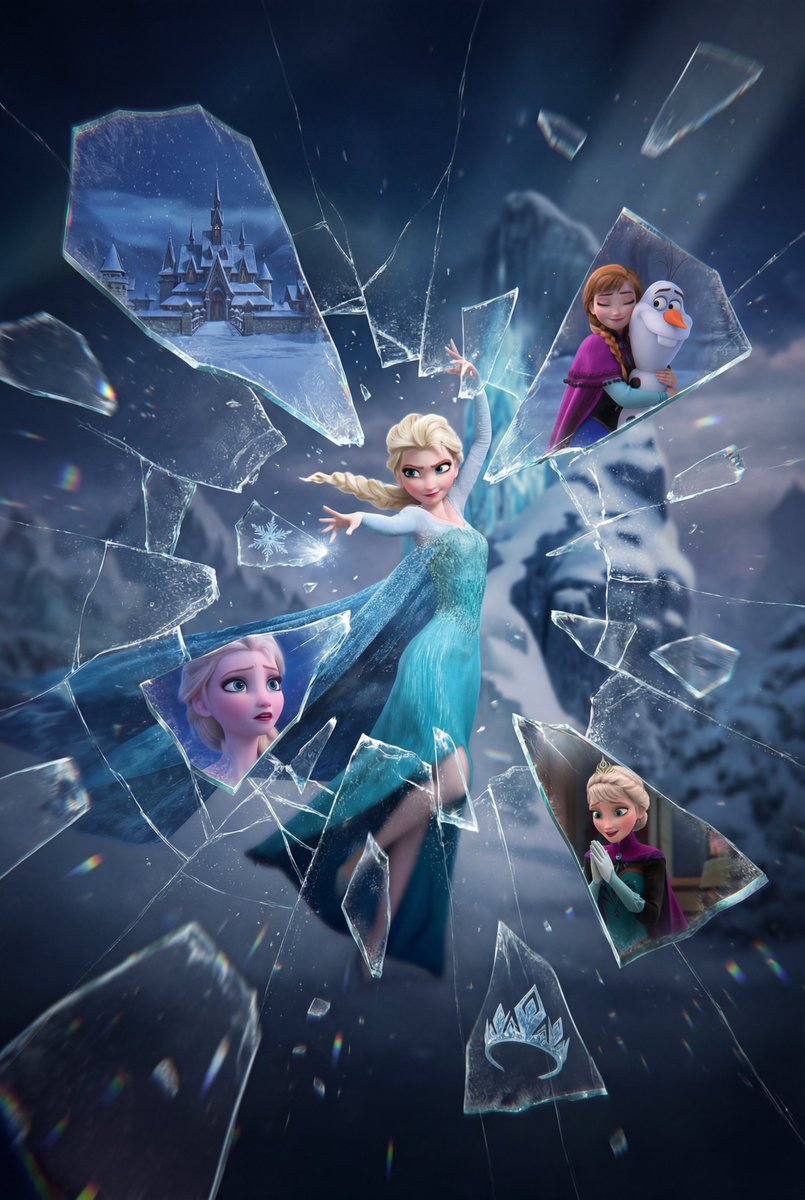

You can find the full prompt here: ✨Prompt✨
Using Cursor + Claude Code to Build a Smart Template
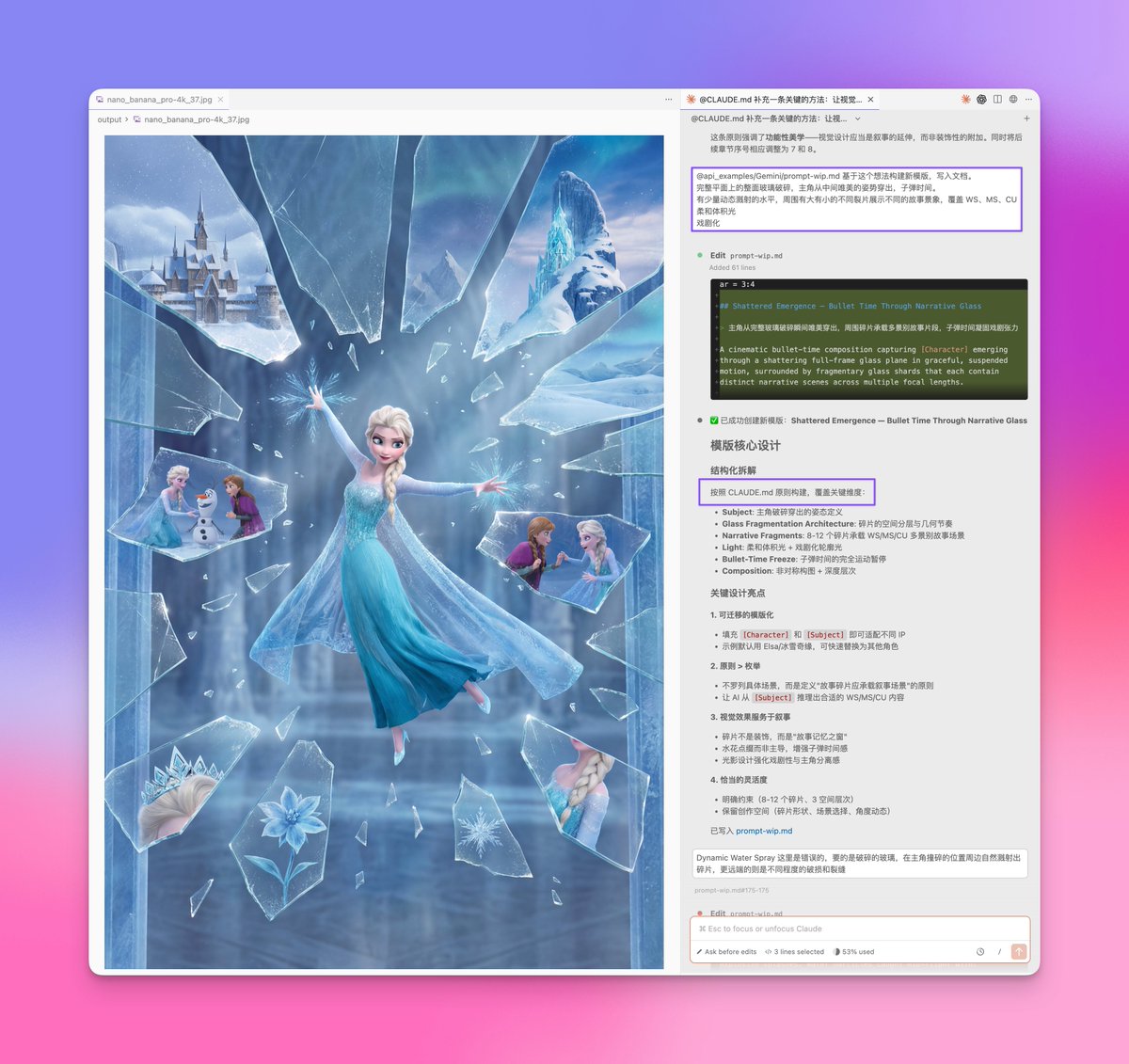
My go-to tools became Cursor combined with Claude Code (CC). The key was creating a global guide file /CLAUDE.md that contains essential visual design logic—principles like "let visuals serve the narrative" and "prioritize principles over enumerations." This meant I only had to write those ideas once, and CC would apply them automatically whenever generating prompts.
For example, with the "Memory Fragment" template (seen in the first image), I’d start by inputting a concept or reference image into CC and ask it to craft a new prompt based on that. Because CC already knew the global rules, it generated a solid first draft prompt quickly.
Iterating Visually in Cursor
Then I’d run that prompt through Cursor’s API to see the image result. This is where the magic happens—rather than tweaking the prompt blindly, I could visually pinpoint issues. Maybe the glass surface’s angle was off or the fragments felt too small and disrupted the storytelling.
Each time I gave CC specific feedback, it would adjust the prompt immediately. Because the global guide already handled the core design logic, I didn’t have to explain what makes a good prompt repeatedly. This back-and-forth was efficient and felt more like a design conversation than trial and error.
Final Refinements and Template Portability
After several rounds of testing and comparisons, I pared down the prompt to remove defensive or redundant phrases. The goal was a clean, minimal prompt that still captured the necessary complexity and style preferences.
Now the template is super portable. I just swap out the [Subject] variable, and the AI automatically adjusts the prompt contextually. This approach saves me tons of time on future projects and keeps the visual output consistently strong.
If you’re interested in improving your text to image workflows, this method shows how integrating AI art creator tools with smart prompt engineering can really shift the creative curve.
For more on image generation tips and how to use prompt adjustments effectively, check out this AI image generator resource.